Start here
Your first night, step by step. Do the first part indoors in daylight, not in the dark on the night.
For your DWARF 3. Change scope
Do these once, in daylight
- Charge it fully. A USB C to USB C phone charger is fastest. It runs about six hours on a full charge.
- Install the DWARFLAB app on your phone, from the App Store or Google Play.
- Turn on Bluetooth and location on your phone, and turn off any VPN.
- Switch the Dwarf on with a short press of the power button. A long press turns it off.
- Open the app and press Connect. The first time, it asks you to activate the Dwarf, which needs mobile data or the internet.
- Let it update if it offers new software. Keep it charged and do not switch it off while it updates.
- Open the Atlas once with signal. It downloads its star maps the first time and works without signal after.
- Check the location in the app's settings. It uses it to find things in the sky.
You also need a tripod: there is not one in the box. What else is worth having.
Setting up on the night
- Pick a clear, still night with Tonight's plan. Wind shakes the picture.
- Set the tripod on firm, flat ground and make it level: the bubble in the middle.
- Point the back of the Dwarf north: the side without the DWARF logo faces north, so the logo faces you when you stand south of it. A compass app is fine. It is the same way round for EQ mode later.
- Switch on 15 to 20 minutes before you start. It settles better.
- Turn off the lights on the Dwarf in the app, and use a red light yourself. White light ruins your night eyes for twenty minutes.
- Go into Astro mode. The first time each night it calibrates: it takes a few pictures of the sky and works out where it is pointing. It needs a clear patch of sky. If it fails, wait for a gap and try again.
Your first picture, on Auto
- Open the Atlas, search for the target, for example M31, and press the little camera button.
- It turns and finds it by itself. When it says it is tracking, wait about 30 seconds for it to settle.
- Leave the settings on Auto. It picks the filter, exposure, gain and number of shots, and it picks well. Auto stays at 15 seconds or under.
- Check the filter by eye before you start: Astro for galaxies and clusters. See why.
- Check the number of shots. Auto sets 999, which is over four hours. Set it to finish before the cloud or the Moon arrives.
- Press shoot and leave it alone. After two shots the picture starts building on screen. The phone can go in your pocket.
- Your picture is in the Album when it finishes. Save it to your phone from there.
The Moon, the easiest of all
The Moon is different: you aim it yourself.
- Point the Dwarf roughly at the Moon, by hand or with the joystick in the app.
- Get the Moon in the middle of the wide view, then switch to the tele view.
- Press autofocus. The Dwarf sees it is the Moon and sets itself: a very short exposure, gain 0, no filter.
- Press shoot. Keep the front of the Dwarf facing the Moon while it tracks.
A full Moon looks flat. When it is half full, the line between light and dark shows the craters in 3D.
Back up after every night or two
There is no memory card to swap. At about 170 frames an hour it uses nearly 3 GB an hour, so a long winter night can take 25 to 30 GB. Copy them off.
On a Windows PC
- Plug the Dwarf in with its USB C cable, Dwarf switched on. Open This PC: it shows up as a drive called DWARF 3, like a memory stick.
- Open the Astronomy folder. Each night is its own folder.
- Copy, do not move: right click the night's folder, Copy, then Paste it into a folder on the PC, and onto an external drive as well, so you have two copies.
- Check the copy opens and has the same number of files.
- Unplug safely: click the USB icon by the clock, then Eject DWARF 3.
On a Mac
- Plug the Dwarf in with its USB C cable, Dwarf switched on. If the Mac asks Allow accessory to connect?, press Allow.
- Open Finder. DWARF 3 is in the sidebar under Locations. If it is not there, open Finder, Settings, Sidebar and tick External disks.
- Open the Astronomy folder and drag each night's folder into a folder on the Mac, such as Pictures. Dragging from the Dwarf to the Mac copies; it does not move. Then drag it onto an external drive too, so you have two copies.
- Check the copy opens and has the same number of files.
- Eject before unplugging: press the eject arrow next to DWARF 3 in the Finder sidebar.
Only then delete them from the Dwarf, once both copies are checked. Deleting a picture in the app's Album wipes it from the Dwarf too.
No cable? Over the Dwarf's WiFi
Tap Connect in the DWARFLAB app first (the Dwarf does not send out its WiFi until you do), then join the Dwarf's WiFi on the computer. The password is DWARF_12345678 unless you changed it.
- Windows: open This PC and type ftp://192.168.88.1 in the address bar.
- Mac: in Finder choose Go, then Connect to Server, type ftp://192.168.88.1, press Connect and choose Guest. A Mac can copy files off this way but cannot delete them, so delete in the app once your copies are checked.
WiFi is much slower, so use the cable after a long night.
New pictures taken while it is plugged in only show once you unplug it and plug it in again. WiFi steps from DWARFLAB's own help page.
Three first targets
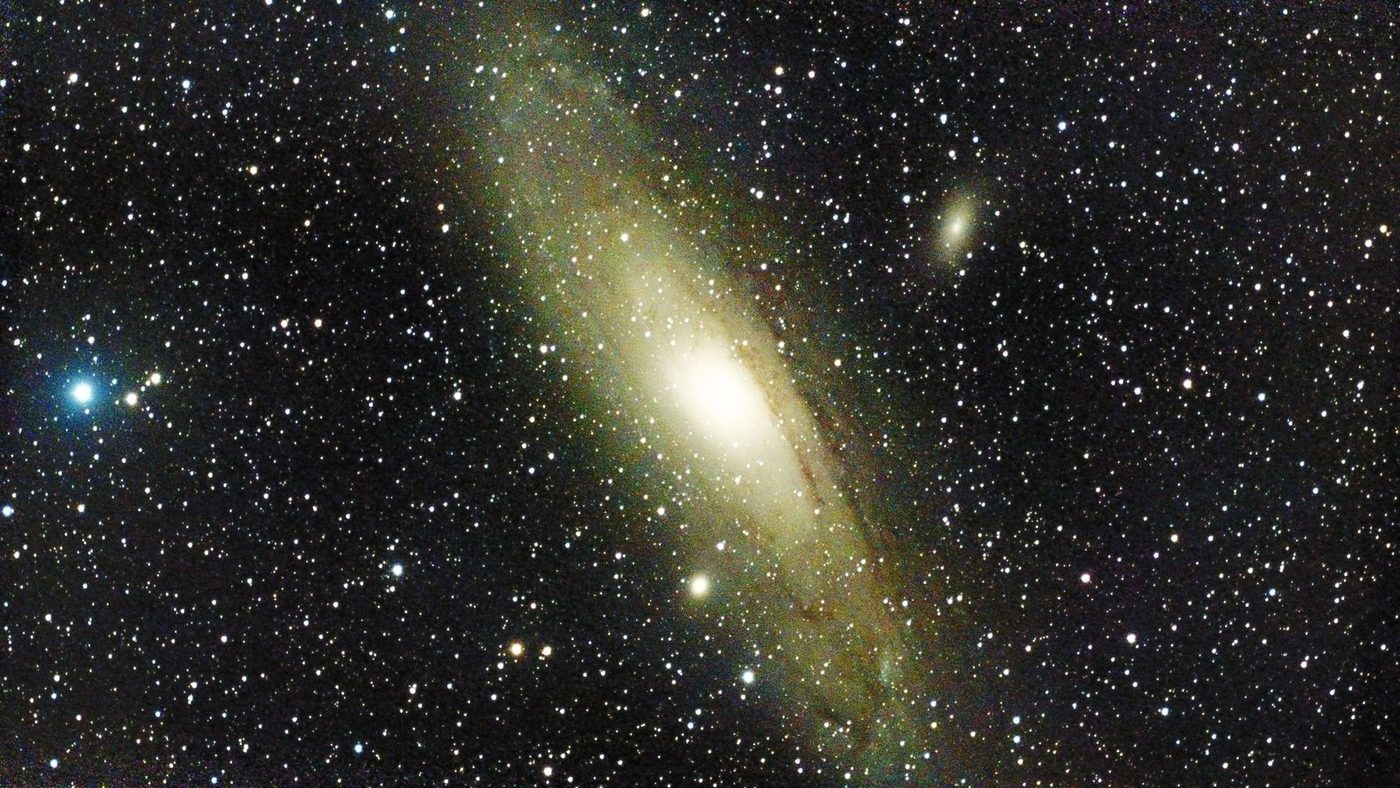
Each one has its settings and best months on the targets page. When these feel easy, move on to Improver.
Help from DWARFLAB
- DWARF 3 Unboxing and Quick Setup, DWARFLAB's own video. Watch this first.
- DWARFLAB help: unboxing and quick setup, written steps with pictures.
- DWARFLAB on YouTube, for more of their how to videos.